The current digital business model is indeed evolving. Email has become more than just a communication tool. It’s a vital repository of conversations, documents, and decisions. Organizations that prefer Google Workspace recognize that ensuring the safety and availability of email data is crucial for business continuity, compliance, and peace of mind.
While Google delivers built-in reliability and data protection, accidental deletions, security breaches, or user errors can still result in data loss. This is where email backup comes in handy. Having a particular backup strategy certifies that your important emails remain secure, accessible, and recoverable whenever required.
In this post, we will explain to you, through simple and effective methods, how to backup your G Suite emails quickly and effectively, even if you are not from a technical background.
Why Backup G Suite Emails?
To completely understand the significance of G Suite email backup, it’s vital to consider why backing up G Suite emails is vital. While Google’s servers are renowned for their reliability, unforeseen events such as server failures, deliberate deletions, or malicious attacks can still lead to data loss.
For businesses, backing up G Suite emails is vital, as this data is foundational to their operations. Losing confidential information can result in decreased productivity, legal complications, and damage to the company’s image, making regular backups an important safeguard. Moreover, regulatory compliance, such as GDPR and HIPAA, requires that data backups be part of the entire data management tactics.
Key Steps for Backing Up Your Google Workspace Emails
-
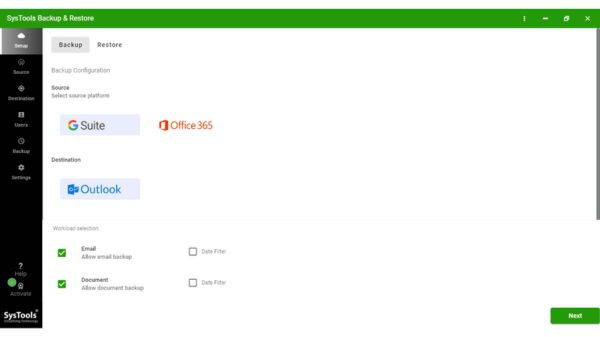
Start by downloading and installing the software onto your system. On the main welcome screen, click on the backup button.

-
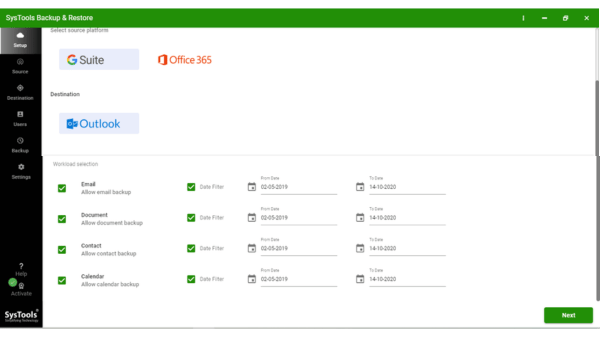
The software will show you two supported source account options. Consider G Suite and choose the G Suite category to export data, including Emails, Calendars, Contacts, and Documents.
-
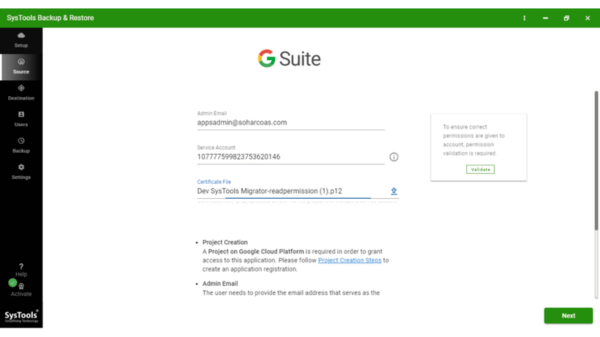
Depending on your G Suite account selection, follow these steps: If you consider a G Suite account, log in using your G Suite credentials, and authenticate your account.
-
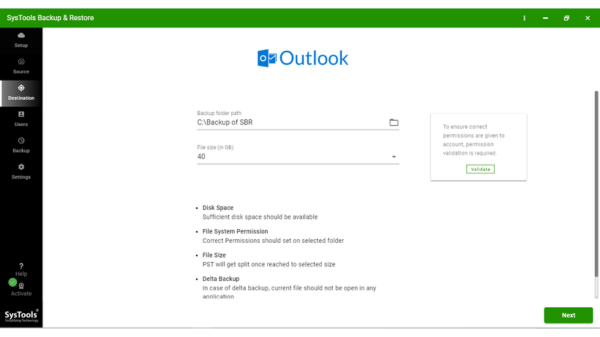
The software will prompt you to specify the destination path where your PST file(s) will be saved.
-
Now, leverage one of the first two options to retrieve the list of users for downloading G Suite email and other data. The last option, Download template, delivers you with a template in the correct format for importing users.
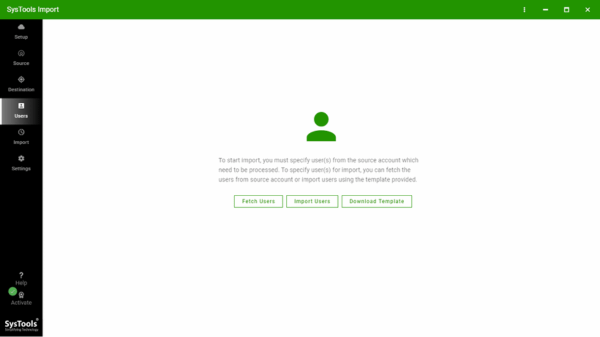
-
Now, pick the validate option to authenticate the imported user accounts.
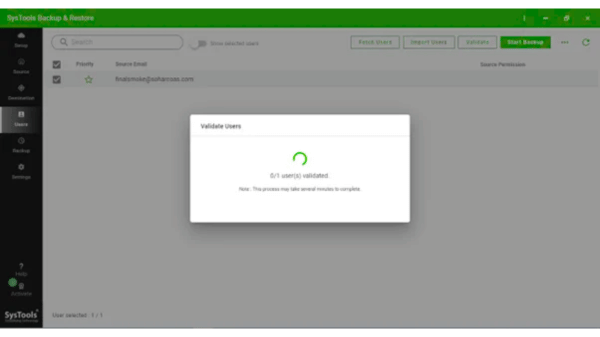
-
Once validation is finished, click on the start backup button to proceed, and then click start.
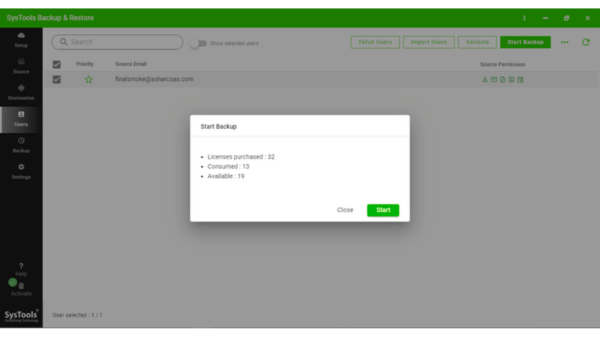
-
At the end, the tool will process your G Suite account and represent live backup progress.
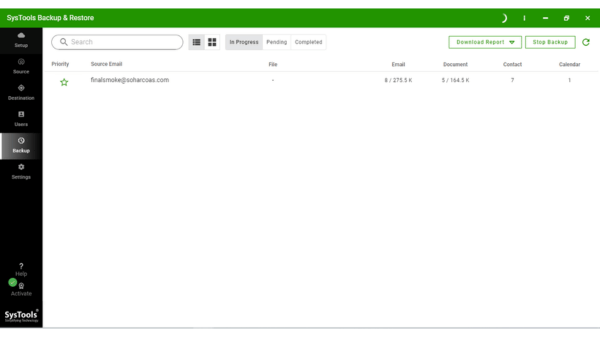
Protecting your G Suite emails needs efficient strategies. While the Data Export Tool has limitations, a specialized automated solution like Google Workspace Backup stands out as a reliable choice. Ensure your critical data is secured, compliant, and always available for recovery.